
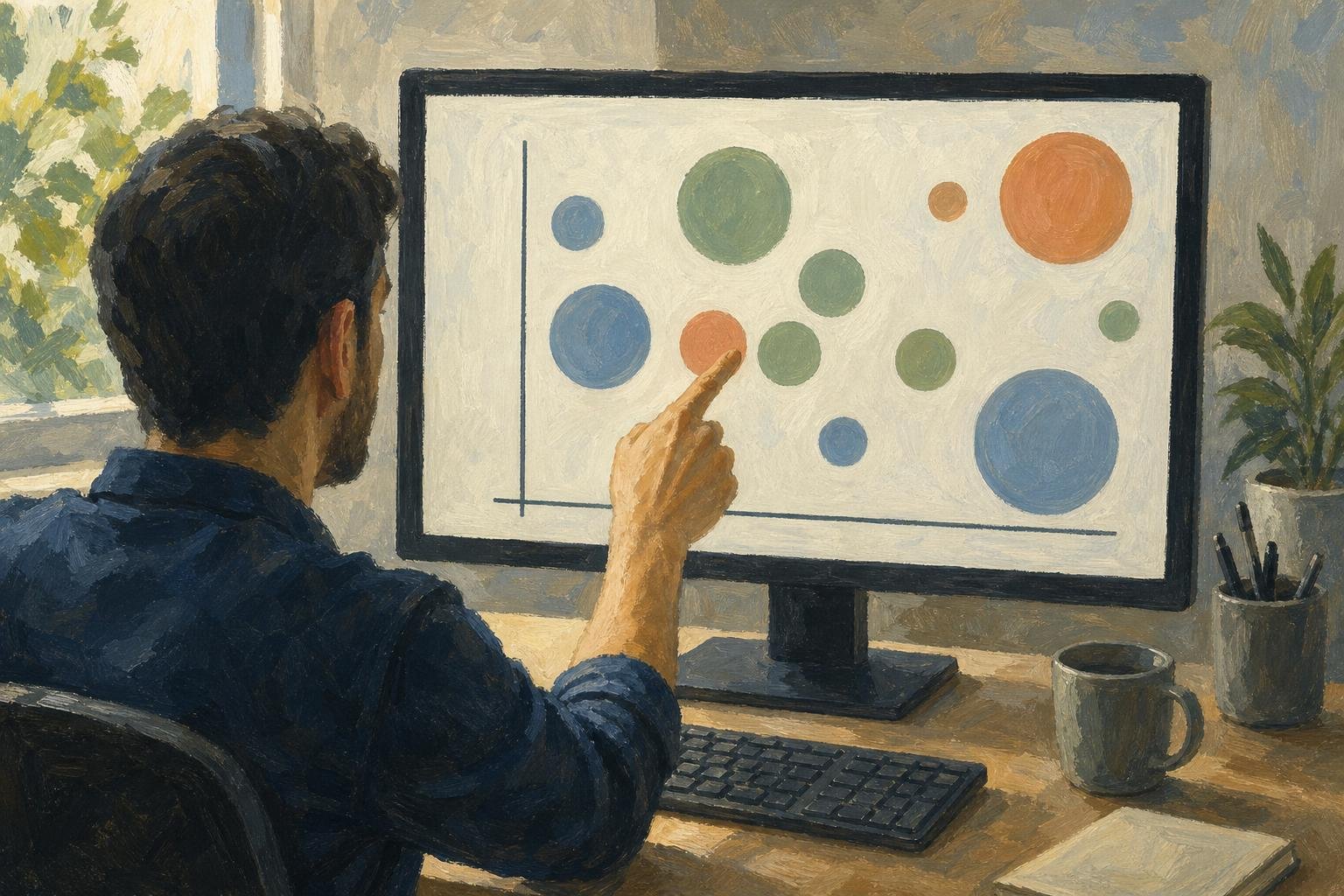

A bubble chart represents observations with circles whose areas show numerical values; in an axis-based chart, their positions show two additional values. It can also fool you: in a hypothetical sales chart, sales rise from 100 to 400 units, but the designer incorrectly quadruples the circle’s radius. Its area grows sixteenfold for a fourfold increase in sales. Doubling the radius would show that increase correctly.
Reading the chart means separating what position tells you from what size tells you. Axis-based bubble charts use measured horizontal and vertical positions; packed circles use placement only to arrange the bubbles. Choose between them according to whether readers need to compare relationships or magnitudes.
In This Article
- Read the Axes Before Comparing Circles
- Judge Area, Not Radius
- Choose Between Axes and Packed Circles
- See How Gapminder Combines the Encodings
- Make Overlap and Labels Manageable
- Build the Chart in Microsoft Excel
- Key Takeaways
- Frequently Asked Questions
- Choose Clarity Over Extra Dimensions
Read the Axes Before Comparing Circles
In an axis-based bubble chart, each circle’s center marks a horizontal x-value and a vertical y-value. Those values can pull your judgment in opposite directions. In R’s mtcars dataset, the Ford Pantera L has 264 horsepower and gets 15.8 miles per US gallon; the Honda Civic has 52 horsepower and gets 30.4 miles per US gallon. Put horsepower horizontally and fuel economy vertically: the Pantera sits farther right, but the Civic sits higher.
Neither car is simply “ahead.” The axes reward different things. Read their titles, units, and tick marks before deciding what a favorable position means. A logarithmic axis adds another distinction: equal spacing represents equal ratios, not equal numerical differences.
Size introduces a separate comparison. In a store chart, sales might determine horizontal position and profit margin vertical position, while customer count determines area. A large circle can therefore sit low on the chart: many customers do not automatically mean a high margin.
Judge Area, Not Radius
Bubble size should be proportional to value through area. The opening’s distorted sales chart breaks that rule because circle area equals π times radius squared. To show a value four times larger correctly, double the radius. A size legend with numerically labeled reference circles makes that relationship readable without asking people to calculate it.
Proportional area has a hard boundary at zero. A zero-sized observation disappears unless it receives a separate marker or explanation. Giving every observation a minimum visible circle keeps it on the page but breaks proportional sizing near zero; disclose that adjustment.
Negative values cannot have proportional circle areas. They need another encoding or chart type, although either coordinate can still be negative. A store with a loss can sit below zero on a profit axis; its customer count can remain a perfectly valid positive size.
Choose Between Axes and Packed Circles
Bubble charts with axes suit questions about relationships, such as whether higher-cost products receive better ratings once sales volume is visible. Packed circles sacrifice measured positions to fit quantities together. Their placement answers no question about what is higher or farther right.
Consider a hypothetical executive presentation: a packed cluster contains one large circle labeled “North” surrounded by smaller regional circles. Area represents revenue. The executive asks which region earns the best margin. Nothing in that cluster can answer. Moving North toward the top would only rearrange the packing, not supply the missing measurement.
Use packed circles for an overall impression of magnitude when precise ordering is secondary; bars make close category comparisons easier. A bubble line chart needs an equally clear reason for its lines, such as successive dates. Connect unrelated products or regions, and the viewer may read a journey through observations that have no sequence.
See How Gapminder Combines the Encodings
An animated bubble chart appears in Hans Rosling’s 2006 TED presentation, “The best stats you've ever seen.” In its income–health sequence, the horizontal axis shows GDP per capita and the vertical axis shows the percentage of children surviving to age five. Population controls bubble size. This is distinct from the earlier sequence pairing fertility with life expectancy. Starting with the world in 1960, Rosling follows countries through time and describes China’s health improvements preceding its economic gains.
The movement changes the story.
Animation follows a country’s changing position, while a still frame compares countries at one moment. Selected static views can make close year-to-year differences easier to inspect. Either way, population does not determine success on the axes. In this sequence, upward movement means improved child survival; rightward movement means higher GDP per capita. A larger bubble means more people, not a better result on either axis.
Make Overlap and Labels Manageable
Suppose fifty stores have exactly the same sales and profit margin. Their circles land on the same coordinate. An opaque circle drawn last can conceal the other forty-nine; adding labels at that point produces a knot, not an explanation.
Transparency reveals some overlap, and thin outlines help separate neighboring edges. Drawing smaller circles above larger ones protects them from being buried. None of those changes separates fifty identical centers. Use a filtered view or separate panels when readers need to distinguish those stores.
Labels should solve the remaining identification problem. Name the observations central to the explanation; give the rest hover details in an interactive version or an accompanying table in a static report. If color distinguishes regions, provide a readable legend and another way to identify an essential category. Color cannot uncover a hidden circle.
Build the Chart in Microsoft Excel
Prepare a label column followed by three numerical columns: x-values, y-values, and bubble-size values. For the store comparison, those are sales, profit margin, and customer count. Keep each store on one row, and use positive size values when every store needs a visible proportional circle.
Enter this hypothetical example in A1:D5 on a worksheet named Sheet1:
| Store | Sales (USD) | Profit margin | Customer count |
|---|---|---|---|
| North | 100000 | 10% | 500 |
| South | 150000 | 15% | 800 |
| East | 120000 | 8% | 600 |
| West | 200000 | 12% | 1000 |
These steps use Excel for Microsoft 365 on Windows. Select B2:D5, then choose Insert → Scatter or Bubble Chart → Bubble. Right-click the chart and choose Select Data. In the Select Data Source dialog, under Legend Entries (Series), select the series and choose Edit to open the Edit Series dialog. Set Series X values to =Sheet1!$B$2:$B$5, Series Y values to =Sheet1!$C$2:$C$5, and Series bubble size to =Sheet1!$D$2:$D$5. Exclude headers from those ranges. Menu wording varies by Excel version.
To attach store names, select the bubble series and use the chart’s + button to add Data Labels. Right-click a label and choose Format Data Labels → Label Options. Under Label Contains, select Values From Cells. In Data Label Range, select Sheet1!$A$2:$A$5 and choose OK. Clear other label-content checkboxes if you want only store names.
The important control is in Format Data Series: size must represent Area, not Width. Do not assume that the default or an inherited workbook setting is correct. Width scaling recreates the opening’s distortion even when every worksheet value is right.
Add axis titles with units, a descriptive chart title, and labeled reference sizes or another clear size explanation. Inspect the result for obscured observations. Correct cells do not guarantee correct circles.
Key Takeaways
- Decide which comparison deserves position before assigning the remaining measure to area.
- Treat the size legend as part of the chart, not optional decoration.
- Do not ask a packed layout to answer a question its placement cannot encode.
- Resolve hidden observations before spending time polishing their labels.
- Keep a third measure only when it changes the reader’s decision.
Frequently Asked Questions
These edge cases matter when you move from understanding the design to preparing actual data.
What Is a Bubble Chart?
A bubble chart represents observations as circles, with size carrying a numerical value. For an axis-based version, an observation missing any of its three measurements needs explicit handling; a blank is not an assumed zero.
What Is the Difference Between a Scatter Chart and a Bubble Chart?
A bubble chart adds a size-encoded measure to the two numerical coordinates of a scatter chart. If your dilemma is whether to include customer count, keep equal-sized scatter points unless that count changes the comparison.
Can Packed Circles Show a Correlation?
Packed-circle positions cannot show a correlation between numerical variables. Two circles touching in the pack have no measured relationship merely because they are neighbors.
How Many Bubbles Can I Include?
There is no universal maximum number of bubbles. Judge readability at the final display size: a chart that works while zoomed in may fail on the page where readers encounter it.
Should the Axes Always Start at Zero?
No, bubble-chart axes do not always need to start at zero. Centers encode coordinates, unlike bar lengths measured from a baseline, so a narrower range can work if it is clear and does not crop circles at the plot boundary.
Choose Clarity Over Extra Dimensions
Choose the comparison before opening Excel. For sales against profit margin, begin with a scatter chart; add customer count only when it explains a difference the reader needs to act on. For a ranking by customer count alone, choose bars. Packed circles suit a broad comparison of magnitude, not a request for precise placement.
Then test the finished chart at its intended size. Identify the stores hidden behind larger circles and make their values accessible. The final test is stricter than whether the chart looks appealing: if removing size leaves the interpretation and decision unchanged, delete the third dimension entirely. It has earned no place in the chart.
Recommended for you
Right vs Left Skewed Histogram: What the Tail Reveals
A right vs left skewed histogram is named for its tail, not its tallest bars. Avoid reversed readings and check averages and binning. Explore the guide.
Box Plot Reading: A Shorter Box Doesn’t Mean Faster
A box plot shows center and spread, not speed alone. Use task-time examples to compare medians and variability on the same scale. See the worked example.
Comparing Histogram vs Bar Graph: What Values Reveal
The histogram vs bar graph choice starts with categories versus numerical observations. Learn how bins and axes shape each chart, and see which fits your data.
Symmetric Histogram: Balance Beyond the Tallest Bar
A symmetric histogram mirrors bars around a center, not always its tallest peak. Compare tails and see how bin boundaries affect balance. Read the example.

Mapped: How a Bill Becomes a Law Flowchart—Key Decisions
Use this how a bill becomes a law flowchart to trace committee review, chamber votes and presidential action. See why bills move forward or stop along the way.
Explained: How to Read a Histogram, From Axes to Area
Learn how to read a histogram using book-length examples. Check axes, interpret counts, and see why unequal bin widths need area. Read the walkthrough.

Climate Change Infographic: From Emissions to Action
See how a climate change infographic links heat-trapping gases to rising heat, then separates emissions cuts from adaptation. Explore the causes and actions.
Histogram Patterns: What Clinic Waiting Times Reveal
A histogram turns clinic waiting times into visible clusters and gaps. Learn what bins and bar heights mean, and how to choose bin widths. See the example.