


A Pareto chart ranks categories from largest to smallest, helping you decide where improvement work could have the greatest effect. It often includes a cumulative-percentage line. Read the bars to identify the biggest contributors, then, when a line is included, follow it to see how much those categories contribute together.
This guide explains the chart’s origins, works through a complete clothing-defect example, and shows how to build one in Excel. The approach is consistent throughout: compare one measure, calculate each category’s share, and use the result to choose what to investigate.
In This Article
- What the Chart Tells You
- How to Read the Bars and Line
- A Complete Clothing-Defect Example
- How to Calculate the Percentages
- How to Create It in Excel
- How to Choose a Useful Priority
- Key Takeaways
- Frequently Asked Questions
- Start With the Largest Contribution
What the Chart Tells You
A Pareto bar chart displays category totals in descending order. Those totals can represent defect counts, complaint volumes, or costs, provided every bar uses the same measure. This guide uses the combined display: descending bars plus a line that adds each category’s percentage to the percentages before it.
The chart takes its name from Italian economist Vilfredo Pareto. Joseph M. Juran applied the Pareto principle to quality management, helping establish the practice of concentrating improvement efforts on the largest contributors. ASQ includes the Pareto chart among the seven basic quality tools.
That history explains its purpose: setting priorities. A tall bar identifies a substantial contribution to the measured total; it does not explain why that contribution occurred.
How to Read the Bars and Line
Begin with the category labels along the bottom. Read each bar against the left vertical axis, which shows the measured amount. In a chart of defects, that axis counts defects, not defective garments: one garment might contain several defects.
Next, read the cumulative line against the right axis. Each point represents the combined share of all categories up to that point. The final point should reach 100%.
For the conventional combined display, the left scale runs from zero to the overall total, while the right scale runs from zero to the full percentage. Half the total then aligns with 50%. This alignment matters because the bars and line use different units.
A Complete Clothing-Defect Example
This Pareto chart example uses an illustrative total of 1,000 defects across five categories. Button, pocket, and collar defects account for 39%, 27.1%, and 16.9%, respectively. Seam defects account for 10%, and zipper defects account for 7%, completing the remaining 17%. Treat the entire dataset as a teaching example, not as evidence of defect rates in a factory.
The source-data table gives the exact values used in the chart:
| Defect Category | Defect Count | Individual Percentage | Cumulative Percentage |
|---|---|---|---|
| Button defects | 390 | 39.0% | 39.0% |
| Pocket defects | 271 | 27.1% | 66.1% |
| Collar defects | 169 | 16.9% | 83.0% |
| Seam defects | 100 | 10.0% | 93.0% |
| Zipper defects | 70 | 7.0% | 100.0% |
| Total | 1,000 | 100.0% | — |
Clothing Defects: Counts and Cumulative Share
Bars show defect counts, and the line shows cumulative percentages. The table provides the exact values.
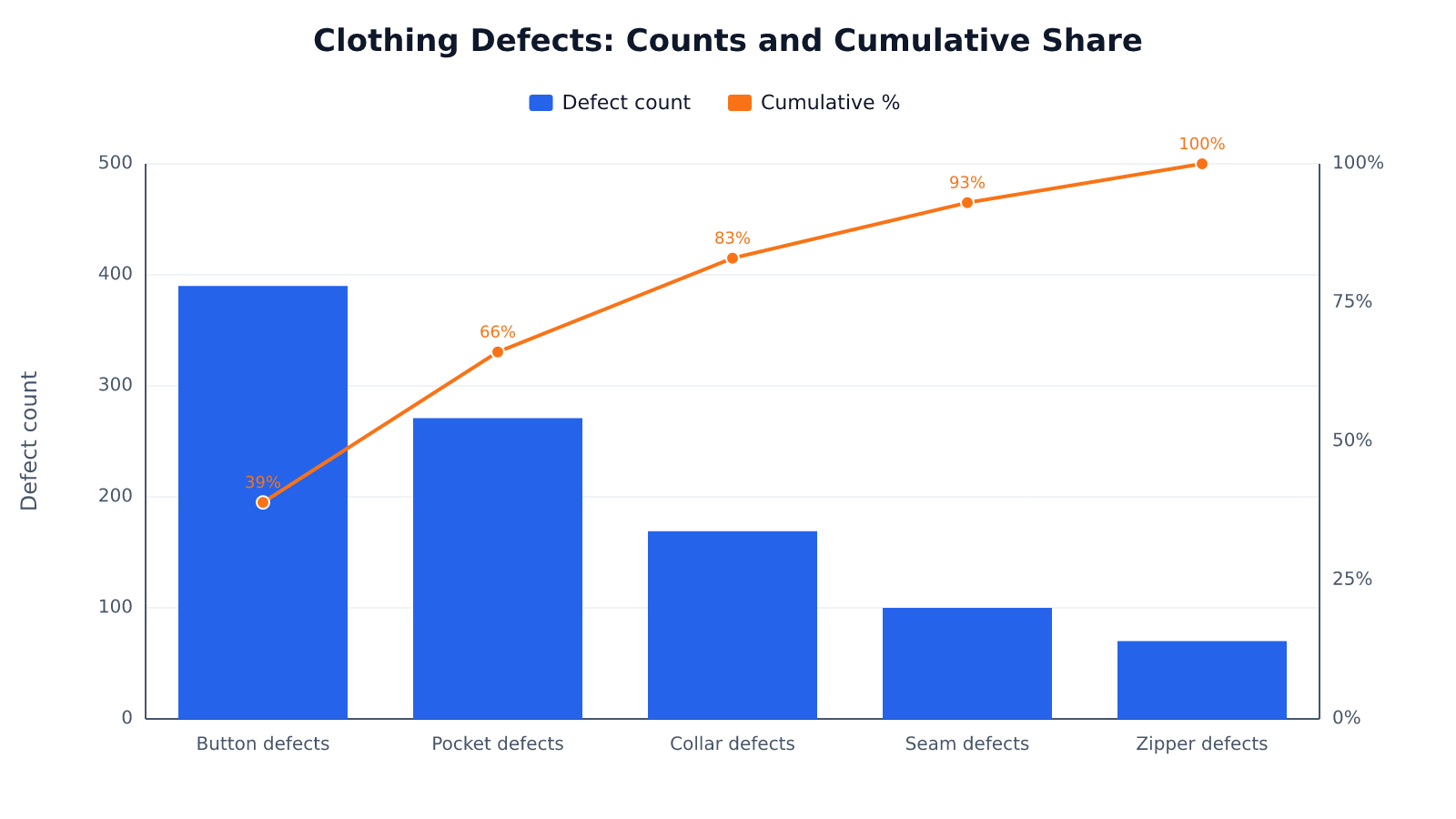
The first two categories together account for nearly two-thirds of recorded defects. Adding collar defects takes the running share beyond four-fifths. Neither result guarantees an equivalent reduction: improvement depends on whether you can identify and address the causes within those categories.
How to Calculate the Percentages
For each category, divide its value by the grand total and multiply by 100. For example, the pocket-defect calculation is:
Individual percentage = 271 ÷ 1,000 × 100 = 27.1%
Calculate the cumulative percentage by dividing the running count by the grand total. Using running counts avoids carrying rounding errors forward from individually rounded percentages.
In a spreadsheet with counts in cells B2 through B6, use =B2/SUM($B$2:$B$6) for the individual share and =SUM($B$2:B2)/SUM($B$2:$B$6) for the cumulative share. Format both columns as percentages and fill downward. Keep the counts sorted from largest to smallest before calculating the running totals.
How to Create It in Excel
Excel 2016 and later provide a built-in Pareto chart. Put category labels in one column and their numeric values in the next, with headers such as “Defect Category” and “Defect Count.” Use the five category rows from the example; exclude the total row so Excel does not treat it as another category.
Select those two columns, including their headers, then choose Insert → Insert Statistic Chart → Pareto. Excel orders the bars and adds the cumulative line. You do not need to select the percentage columns for this built-in chart.
Give the chart a descriptive title and label the measurement clearly. Keep numeric values as numbers rather than text, and combine duplicate category labels before charting when they represent the same defect type.
How to Choose a Useful Priority
Pareto analysis starts with a defensible comparison. Count defects within one reporting period, apply consistent category definitions, and decide how to classify defects that could fit multiple categories. Otherwise, a large bar might reflect inconsistent recording.
Frequency also differs from risk. A rare safety defect may deserve attention before a common cosmetic flaw. If financial impact is your concern, build a separate chart using costs; do not combine dollars and defect counts in one series.
Once you select a category, investigate its underlying causes through inspection records or process observations. After making a change, compare results using the same definitions and comparable exposure, such as similar production volumes. A changed category ranking alone does not demonstrate improvement.
Key Takeaways
- Descending bars make the largest contributing categories easy to identify.
- Compare categories using one consistent measure and reporting period.
- The cumulative line shows running contributions and ends at 100%.
- The 80/20 principle is a prioritization heuristic, not a required distribution.
- Frequent defects deserve investigation, but frequency alone does not establish severity or cause.
Frequently Asked Questions
What is a Pareto chart?
A Pareto chart displays category totals as descending bars, often with a cumulative-percentage line. It helps you identify which categories contribute most to a measured total, such as customer complaints.
What is the 80/20 rule in a Pareto chart?
The Pareto Principle is commonly expressed as 80% of results coming from 20% of causes. It is a prioritization heuristic, not a statistical requirement; your chart can show a different concentration and still be useful.
What is the difference between a Pareto chart and a histogram?
A Pareto chart compares named categories ordered by their contributions. A histogram groups numerical observations into intervals, such as garment lengths, and keeps those intervals in numerical order to show the distribution.
What is Pareto analysis?
Pareto analysis is the process of ranking contributions to identify improvement priorities. The chart supports that process, but choosing an intervention also requires judgment about feasibility and consequences.
Can I use costs instead of counts?
Yes. Use each category’s total cost, measured consistently over the same period. The bars then rank financial contributions, and the cumulative line represents the running share of total cost.
Start With the Largest Contribution
In the clothing example, button and pocket defects provide a concrete starting point. Their combined contribution makes them worth examining, but the chart cannot tell you which production step needs changing. That requires evidence from the process itself.
Choose an intervention only after that investigation, while giving urgent safety issues their own priority. Then measure the outcome on a comparable basis.
Recommended for you

Infographic Ideas That Answer Real Everyday Questions
Find infographic ideas for report findings, customer questions, budgets, and more. Match each question to a clear visual structure—explore the examples.
Box Plot Reading: A Shorter Box Doesn’t Mean Faster
A box plot shows center and spread, not speed alone. Use task-time examples to compare medians and variability on the same scale. See the worked example.

Stacked Bar Chart: Totals, Parts, and Shares Made Clear
A stacked bar chart shows totals and the parts behind them. Learn when to use counts or percentages, with a worked example and Excel steps. See the guide.

Turning Data into Stories: The Psychology of Visual Complexity
A network map with 1,200 nodes feels mesmerizing until your eyes start to swim; a five-bar chart can feel banal yet instantly graspable. The gap between awe and overload is not just taste—it’s how our visual and cognitive systems negotiate complexity, novelty, and control. If you want to use complex visuals to create connection and […]

Explained: How to Read a Histogram, From Axes to Area
Learn how to read a histogram using book-length examples. Check axes, interpret counts, and see why unequal bin widths need area. Read the walkthrough.

How to Find a Hobby That Truly Fits You
Give a hobby 21 days and 90 minutes per week, and you will learn more about your motivation, stress triggers, and attention than a dozen personality quizzes. A few concrete moves—testing a novel, a 5‑aside game, or a few low-stakes rounds of online gameplay—can reveal which activities calm your nervous system, sharpen focus, and actually […]

Line Graph Scales: Why the Same Data Can Look Different
A line graph can exaggerate a modest change. Learn to check axes, read a five-month sales example and build clearer charts from your data. Explore the article.

Comparing Histogram vs Bar Graph: What Values Reveal
The histogram vs bar graph choice starts with categories versus numerical observations. Learn how bins and axes shape each chart, and see which fits your data.