
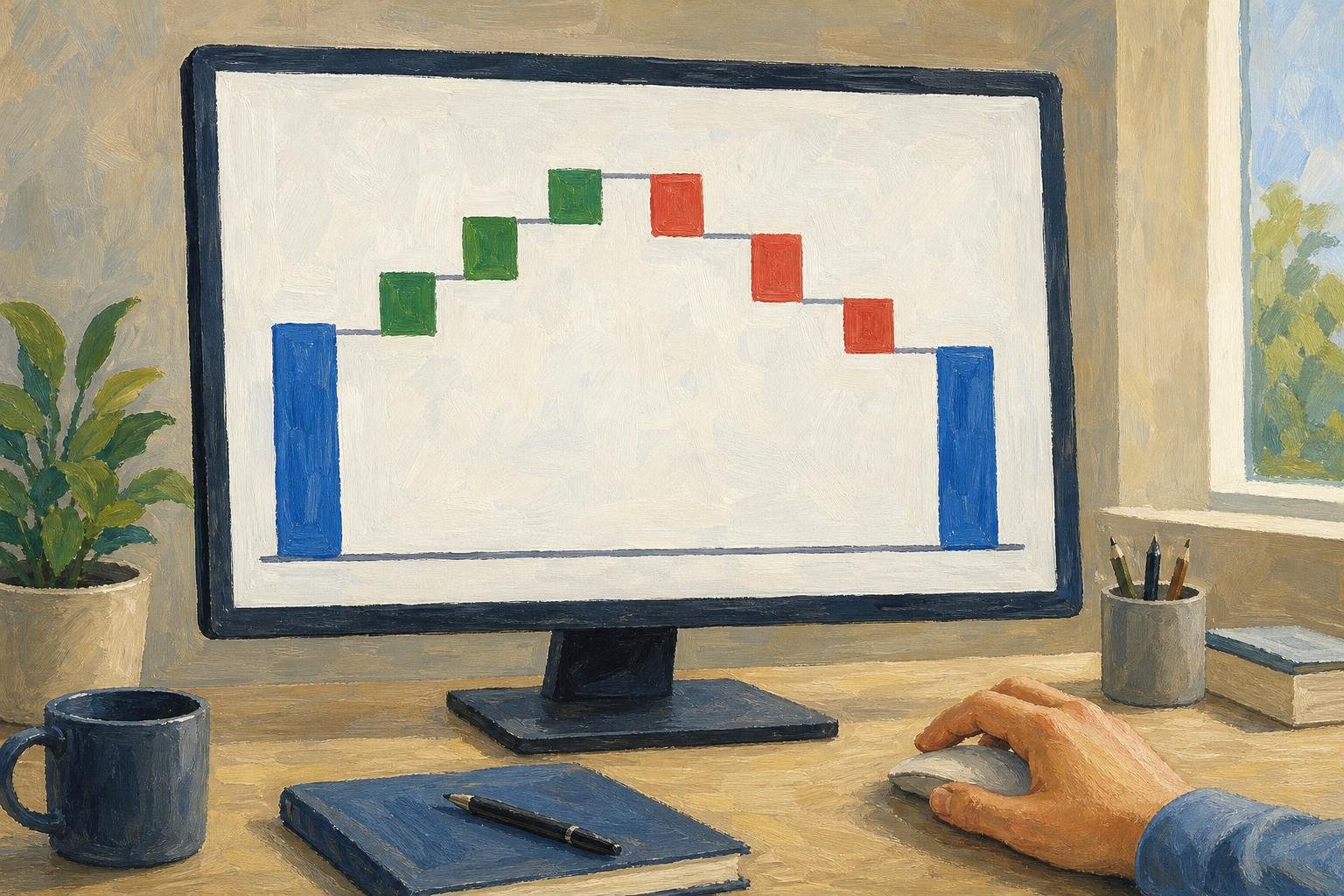

A waterfall chart shows how a starting value becomes an ending value through increases and decreases. It prevents a costly misunderstanding: treating a positive net result as evidence that nothing went wrong along the way. Its floating bars expose the gains and losses behind the final balance.
In this quarter-over-quarter revenue example, starting revenue is the previous quarter’s revenue and ending revenue is the current quarter’s revenue.
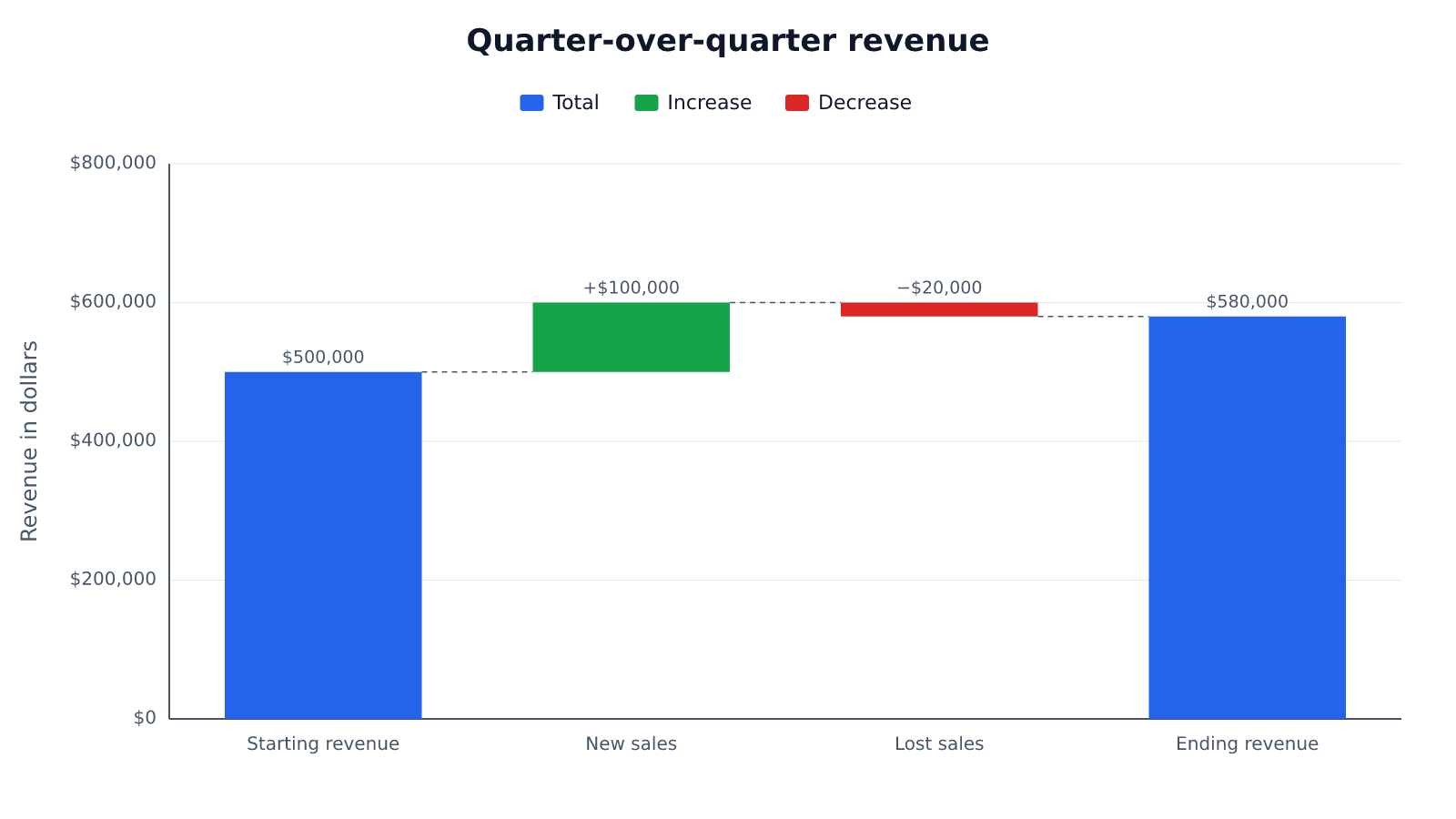
For a revenue review, that distinction can change the conversation from “We grew” to “New sales covered a customer loss we need to address.” Waterfall charts make those competing movements visible without losing sight of the result.
In This Article
- Read the Bars as a Running Balance
- Follow a Complete Revenue Example
- Prepare Data That Reconciles
- Build the Chart in Excel or Power BI
- Make the Explanation Easy to Follow
- Choose the Right Chart for the Question
- Key Takeaways
- Frequently Asked Questions
- Make Every Change Accountable
Read the Bars as a Running Balance
Suppose a reader sees a floating loss bar near the $600,000 mark and reads its height on the axis as the amount lost. That confuses the bar’s position with its size. A bar stretching between $600,000 and $580,000 represents a $20,000 decrease, not a loss approaching the company’s entire revenue.
The position matters because each contribution begins where the previous balance leaves off. An increase reaches toward a higher balance; a decrease reaches toward a lower one. Follow the bars in sequence, carrying the balance forward after each change.
Total bars interrupt that sequence to show the balance itself. They extend from zero, giving the floating contributions a reference point. Thin connector lines sometimes join adjacent bars at their shared balance; they help your eye follow the movement but carry no additional value.
The arithmetic behind that movement uses signed changes: positive for increases and negative for decreases. Every contribution follows one rule:
New running total = previous running total + signed change
Follow a Complete Revenue Example
Consider a hypothetical waterfall chart example comparing two consecutive quarters at a subscription-software company. Recognized revenue was $500,000 in the previous quarter and $580,000 in the current quarter. New customers contribute $100,000 to that quarter-over-quarter increase. A cancellation following a failed product rollout reduces current-quarter revenue by $20,000 compared with the previous quarter. Assume all other revenue is unchanged. The net increase is $80,000, or 16% of the previous quarter’s revenue.
That growth gives the sales team something to celebrate. The cancellation gives the product team a problem to investigate. Reporting only the ending revenue would leave the loss out of the discussion; reporting only the cancellation would conceal the stronger sales performance.
The table keeps both contributions visible and separates their roles from the balances they explain.
| Source Row | Role | Source Value | Calculation | Running Total |
|---|---|---|---|---|
| Previous-quarter revenue | Opening total | $500,000 | Comparison baseline | $500,000 |
| New sales | Increase | +$100,000 | $500,000 + $100,000 | $600,000 |
| Lost sales | Decrease | −$20,000 | $600,000 − $20,000 | $580,000 |
| Current-quarter revenue | Closing total | $580,000 | Display current-quarter revenue | $580,000 |
The new-sales bar reaches the bridge’s highest running total, $600,000. This is not an observed revenue balance during the quarter. The lost-sales bar takes one block back from that point, while the final solid bar shows current-quarter revenue. Ending revenue is a result, not another sale to add. That difference becomes critical when you move the table into charting software.
Prepare Data That Reconciles
Before that move, inspect what sits inside “New sales.” Suppose the hypothetical company’s export contains two entries for the same customer contract: “Harbor account: new logo” and “Harbor account: renewal.” If both entries claim the same revenue movement, the categories overlap. A clean-looking chart would give a false explanation.
Resolve the contract’s classification before plotting it. If the contract contains a renewal and an expansion, separate those components according to the comparison you are making. A renewal of unchanged revenue does not automatically explain growth from the opening balance. Every contribution needs to represent a change on the same basis.
That basis also rules out casually combining recognized revenue with cash receipts. Such a combination belongs in a reconciliation specifically explaining accounting differences, not in this revenue bridge. Keep the unit consistent and identify each row as an opening balance, a signed change, or a subtotal or closing balance.
Then compare the calculated result with an independently established closing balance, using underlying values. If they disagree, retain a visible “Unexplained difference” row while investigating. Giving the gap a reassuring category name does not resolve it.
The order of resolved contributions needs a reason too. Monthly cash movements belong in chronological order. A variance analysis might place volume before pricing if that matches its calculation method. Reordering contributions leaves the final sum unchanged but alters the intermediate balances; those positions should not imply an actual sequence unless one exists.
Build the Chart in Excel or Power BI
The reconciled table is ready, but the software still needs to distinguish a balance from a movement. Excel and Power BI support waterfall displays with different input arrangements. The practical test is whether each displayed total matches the balance you established before building the chart.
Microsoft Excel
- Put category labels in one column and numeric values in the next: starting revenue 500000, new sales 100000, lost sales -20000, and ending revenue 580000.
- Select those two columns, including their headers. Choose Insert → Insert Waterfall … → Waterfall.
- Select the opening data point, not the whole series, then right-click and choose Set as Total. Repeat for the closing point.
- Check that the opening total is $500,000, the balance after new sales is $600,000, and the closing total is $580,000.
Without those settings, a balance can become an addition. In this example, treating the closing row as another positive contribution would inflate the running calculation. The chart would suggest a spectacular quarter because it counted the result again.
An intermediate subtotal can cause the same failure earlier in the chart. If you insert a subtotal after new sales, that row should display the balance already reached. Leaving it as an ordinary addition inflates every subsequent balance. Mark subtotals appropriately, then compare the displayed balances with the running-total column before adding data labels and a descriptive title. Total settings are part of the calculation.
Microsoft Power BI
For this example in Power BI Desktop:
- Load the opening balance and signed changes into a table: starting revenue 500000, new sales 100000, and lost sales -20000. Omit the closing-balance row; the visual supplies the final total.
- Add a whole-number sort-order column: 1 for starting revenue, 2 for new sales, and 3 for lost sales. Each category must map to one sort value.
- In Report view, select the category column in the Data pane. Choose Column tools → Sort by Column, then select the sort-order column.
- Select Waterfall chart in the Visualizations pane. Put the category column in Category and the sum of the numeric source-value column in Y-axis.
- In the visual’s More options (…) → Sort axis menu, select the category and Sort ascending. Check the sequence and the generated total of $580,000.
That sequence can still reconcile at company level and fail when someone selects a division. Power BI slicers and report filters change the values in the waterfall visualization. Test a period or business-unit selection: the opening balance and contributions must respond consistently. Otherwise, a company-wide movement may remain in a bridge whose other values now describe only one division.
Make the Explanation Easy to Follow
Suppose an executive sees a green upward bar labeled “Emergency support costs” and calls it good news. In an expense bridge, that increase means more spending. Green ink has supplied a judgment the numbers do not support. Direction means increase or decrease; whether that is favorable depends on the measure.
Make the measure explicit in a title such as “Quarterly Revenue Change,” with the periods nearby. Put signed amounts on contributions and balances on totals. “Lost sales” identifies a driver more clearly than “Negative adjustment.” Give totals a distinct neutral treatment, and keep labels and positions understandable in grayscale so color is never the only explanation.
Those labels also determine which issues receive attention. Related minor movements can sit under “Other operating adjustments,” with their contents available in supporting detail. A small compliance-related charge may still warrant its own bar because it requires a different decision from routine operating changes.
The decision about the failed rollout needs evidence too. In the hypothetical story, the cancellation follows that failure, but the bar itself shows only the revenue assigned to lost sales. Contract records or customer evidence must support any explanation of why the customer left. A waterfall shows attribution; its geometry does not establish causation.
Choose the Right Chart for the Question
Imagine a boardroom presentation that uses a Gantt chart to explain the gap between budgeted and actual spending. The task bars show when work happened and which activities overlapped. They leave the board’s financial question unanswered: which movements account for the difference?
A waterfall serves that discussion by starting with the approved budget and showing contributions toward actual spending. Define upward movement as additional cost, even if the same color indicates favorable growth elsewhere in the report. Revenue reconciliation works for the same reason: the reader needs a bridge between known balances.
If the board instead asks which department spent most, a standard bar chart gives each department an independent baseline. If it asks how spending changed across months, a line chart emphasizes the trend. The waterfall’s floating positions help explain contributions, but make repeated comparisons of levels harder. Keep the Gantt for the scheduling discussion, where duration and overlap are the point.
Key Takeaways
- Read a floating bar’s length as the contribution and its position as part of the running balance.
- Reconcile the source data before charting; overlapping categories can disguise an unresolved explanation.
- Treat total settings as calculation choices, especially when importing closing balances or subtotals.
- Use labels to explain direction without letting color imply an unsupported judgment.
- Match the display to the decision: explaining a difference is distinct from comparing levels or scheduling work.
Frequently Asked Questions
What is a waterfall chart?
A waterfall chart connects a starting balance to an ending balance through individual contributions. Also called a bridge chart or cascade chart, it exposes offsetting movements behind a net change.
Is a waterfall chart the same as a Gantt chart?
No, a Gantt chart shows schedules, while a waterfall explains changes in an amount. A Gantt’s horizontal positions represent dates or elapsed time; a waterfall’s value axis measures the quantity being reconciled.
Can the running total fall below zero?
Yes, if a negative balance makes sense for the measure. Keep zero visible, and show a contribution crossing it as one continuous movement.
Should subtotal bars be included in the final reconciliation?
Subtotal bars should not be added as extra changes in the final reconciliation. They restate balances reached by earlier contributions, so keep their rows identified as subtotals through preparation and chart setup.
Can I use percentages instead of dollar amounts?
Yes, if the contributions share a compatible basis. Differences between percentage rates are usually expressed in percentage points. Percentage changes calculated from different starting values generally cannot be added directly.
Make Every Change Accountable
For this example, the explanation is: “Current-quarter revenue increased $80,000 (16%) over the previous quarter: $100,000 from new customers outweighed a $20,000 customer loss; sustain acquisition while investigating whether the failed rollout contributed to the cancellation.”
Before presenting your own chart, check that the opening balance plus signed changes matches an independently established closing balance. Confirm that totals and subtotals display balances rather than add them again. Then read the explanation alongside the chart: name the movements that matter to the decision, and distinguish what the numbers show from any causal claim that still needs supporting evidence.
Recommended for you

Reading as Mental Design: How Books Shape the Way We Think
Flip open a book and you trigger a design studio in your head: eyes fixate for roughly 200–250 ms per word group, 10–15% of eye movements jump backward to verify links, and your working memory holds about four “chunks” while you assemble a model of what the text describes. Reading as a Form of Mental […]

Climate Change Infographic: From Emissions to Action
See how a climate change infographic links heat-trapping gases to rising heat, then separates emissions cuts from adaptation. Explore the causes and actions.

The Future of Reading: How AI Changes Book Discovery and Enjoyment
Libraries logged hundreds of millions of digital book checkouts last year, while neural text-to-speech can now produce a clean, hour-long audiobook in minutes. Meanwhile, recommendation models trained on billions of reading interactions quietly shape what appears in your “Because you liked…” rows. The future of reading is no longer just about pages and covers; it’s […]
Box Plot Reading: A Shorter Box Doesn’t Mean Faster
A box plot shows center and spread, not speed alone. Use task-time examples to compare medians and variability on the same scale. See the worked example.
Bimodal Histogram: Two Peaks That One Average Can Hide
A bimodal histogram can reveal two operating conditions. Use the 15 and 25 millisecond test example to read the peaks and plan your next analysis. See how.

Comparing Histogram vs Bar Graph: What Values Reveal
The histogram vs bar graph choice starts with categories versus numerical observations. Learn how bins and axes shape each chart, and see which fits your data.

Design Principles for Beautiful and Readable Network Maps
Put 2,000 nodes and 8,000 edges on a canvas and most viewers will see spaghetti. Use layout constraints, color discipline, and geometry tuned to human perception, and clusters, bridges, and outliers become legible in under five seconds—the difference between guesswork and insight. This guide distills Design Principles for Beautiful and Readable Network Maps into practical […]

Stem and Leaf Plot: Ordered Data, Every Value Visible
A stem and leaf plot keeps each value visible while sorting reading times into rows. Learn to build one, find the middle, and spot patterns. See how it works.