
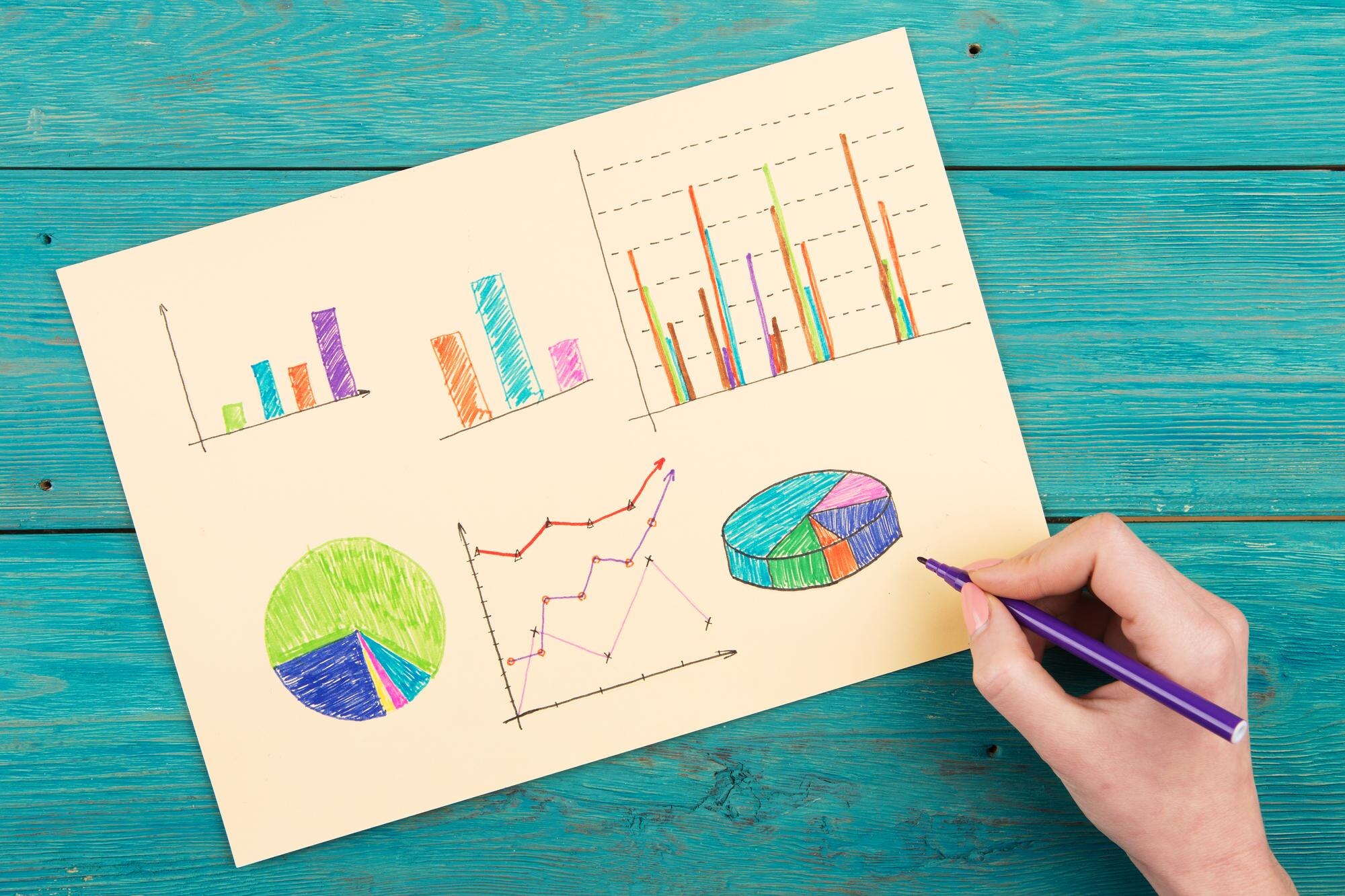

A line graph connects observations to show change across time or another ordered variable, but a dramatic climb can exaggerate a modest difference. The trap is often the scale, not the data: the same sales figures can look nearly flat or sharply uneven. Reading and building these charts starts with separating recorded values from their visual treatment.
In This Article
- Choose the Right Chart for Your Question
- Read the Axes Before Following the Line
- Read a Five-Month Sales Example
- Calculate Changes Without Confusing Them With Values
- Build the Chart From Your Own Data
- Compare Series Without Hiding Their Meaning
- Key Takeaways
- Frequently Asked Questions
- Turn Ordered Values Into Clear Trends
Choose the Right Chart for Your Question
Use line graphs when the connections carry meaning. February follows January; temperature measured at increasing distances from a heater also has a meaningful order.
Shoe brands do not. Suppose you connect hypothetical sales for Brand A, Brand B and Brand C: the line rises, then falls. Swap the last two brands and the apparent trend changes, although no sales figure changed. Alphabetical order creates no business progression. Bars suit that comparison. A scatter plot serves a different question, such as how advertising spending relates to revenue, without implying that neighboring observations belong in a connected sequence.
Read the Axes Before Following the Line
A meaningful sequence can still look misleading. Consider the sales figures below on a vertical axis running from $95 to $205: January’s $100 would sit near the bottom, while April’s $200 would nearly reach the top. The increase is real; the near-full-height climb depends on the chosen scale. A nonzero baseline is allowed, but it needs attention.
Read the title and labels before interpreting that climb. The horizontal x-axis identifies the ordered variable; the vertical y-axis supplies its measured value and units. “Sales” could mean dollars, transactions or items sold. Equal distances on a standard linear axis must represent equal numerical intervals, including gaps between irregularly timed observations.
Read a Five-Month Sales Example
This line graph example uses hypothetical monthly dollar sales. Its vertical scale begins at zero; the scale discussion below compares it with a cropped axis. Dots mark observations; slashes connect them.
Monthly Sales, January–May
Sales ($)
200 |                         ●
    |                        /    \
175 |                      /          ●
    |                     /
150 |         ●          /
    |       /     \    /
125 |     /           ●
    |   /
100 | ●
    |
 75 |
    |
 50 |
    |
 25 |
    |
  0 +-----------------------------------
     Jan     Feb     Mar     Apr     May
                   Month

● = recorded monthly value
/ and \ = connecting segments| Month | Sales ($) |
|---|---|
| January | 100 |
| February | 150 |
| March | 125 |
| April | 200 |
| May | 175 |
Trace March’s point horizontally to read $125. April is the highest observation; May falls back but finishes above January.
Those monthly totals do not reveal daily sales. A position halfway along a connecting segment is not a recorded midmonth figure: the connection shows the sequence, not how sales accumulated within each month.
Calculate Changes Without Confusing Them With Values
March’s $125 is a value; its fall from February is a change. Reversing the subtraction reverses the sign. The earlier value supplies the percentage denominator.
The eye can confuse either calculation with steepness. Stretch this chart vertically and the fall looks sharper, though the loss stays the same. Widen it and the fall looks gentler. Within this chart, equally spaced months let steeper segments indicate larger monthly changes; across separate charts, their angles are unreliable comparisons. Calculate from the labels, not the apparent tilt.
Build the Chart From Your Own Data
To reproduce the example in desktop Excel for Windows:
- Enter the table above in A1:B6, including the headers Month and Sales ($). Keep the amounts numeric and months chronological.
- Select A1:B6. Choose Insert → Insert Line or Area Chart → Line with Markers.
- Set the chart title to “Monthly Sales, January–May.” Under Chart Design → Add Chart Element → Axis Titles, label the horizontal axis “Month” and the vertical axis “Sales ($).”
- Right-click the vertical axis → Format Axis. Set Minimum to 0, Maximum to 200 and Major unit to 25.
- Check that the five markers match the source rows: 100, 150, 125, 200 and 175, in that order.
The monthly setup below uses equally spaced month categories. For irregular dates in Excel, enter real dates and use a date axis with days as its base unit. For numerical distance or temperature, use an XY/scatter chart with straight connecting lines, not a category-based Line chart.
A spreadsheet suits direct editing; code suits repeatable production. Choose within those approaches according to your workflow:
| Line graph tool | Best for | Monthly sales chart setup | Pros | Cons |
|---|---|---|---|---|
| Microsoft Excel | Recurring monthly sales reports in Excel workbooks | Select Month and Sales ($) → Insert → Line → Line with Markers | Charts linked to an Excel Table expand when new monthly rows are added | Desktop app requires a paid license; ordinary cell ranges may need manual extension |
| Google Sheets | Sales teams editing the same monthly dataset | Select Month and Sales ($) → Insert → Chart → Line chart; set Month as the X-axis | Browser-based collaboration; chart updates when source sales values change | A fixed chart data range must be extended to include new months outside it |
| LibreOffice Calc | Offline chart creation without a paid spreadsheet license | Select Month and Sales ($) → Insert → Chart → Line → Points and Lines | Free desktop software; exports charts as SVG or PNG | No built-in browser co-editing; review chart formatting after saving as XLSX |
| Python + Matplotlib | Repeatable line graphs generated from monthly sales CSV files | Load CSV with pandas; sort Month as dates; call plt.plot(month, sales, marker='o') | Scripted formatting; exports PNG, SVG and PDF; supports automated report generation | Requires Python packages and code; dates must be parsed before chronological sorting |
Replace generic labels with descriptive ones, use consistent scale increments and keep gridlines light. Remove decorative effects that obscure positions, then compare each point with its source row.
If March is unknown, retain its row and clear only the sales cell. In Excel, select the chart → Chart Design → Select Data → Hidden and Empty Cells → Gaps. In Calc, choose Leave gap under the data series’ missing-value options. In Matplotlib, retain March with a NaN sales value; removing the point connects its neighbors. In other tools, check that the blank produces a gap rather than zero or a connecting segment.
Compare Series Without Hiding Their Meaning
Suppose a hypothetical second store, Riverside, reports March sales of $140. Its point can share the dollar axis with the original store’s $125. Align the months and distinguish the graph lines with contrasting colors and marker shapes; end labels can reduce reliance on a legend.
If Riverside instead reports 140 items sold, placing that point above $125 implies a comparison the units cannot support. Use separate aligned charts. For relative growth, an indexed chart expresses each store against its own starting point.
Among the types of line graphs, an ordinary multiple-series chart keeps individual changes visible. A stacked line chart instead shows cumulative amounts: stacking Riverside’s dollar sales above the original store’s makes the March upper boundary $265, not Riverside’s own sales. That answers a combined-total question.
Key Takeaways
- Test whether rearranging categories would invent a different trend.
- Treat a dramatic shape as a reason to inspect the scale.
- Keep source observations distinguishable from connecting segments.
- Decide whether a comparison concerns individual series or combined totals.
Frequently Asked Questions
What Is a Line Graph?
A line graph is a chart that connects plotted observations across an ordered variable. A connected segment need not mean that the values between observations were measured, as the monthly example illustrates.
Can the Horizontal Axis Represent Something Other Than Time?
Yes, it can represent an ordered quantity such as distance traveled or increasing test temperature. Space those observations by their numerical intervals, not merely by the order in which you entered the rows.
Should You Connect Points for Categories With No Natural Order?
No, unrelated categories generally belong in a bar chart. Sorting shoe brands by sales may make a connected line look tidy, but that arrangement still does not describe change through time or distance.
How Do You Calculate the Change Between Two Plotted Values?
Subtract the earlier value from the later value for signed change. Percentage change divides that difference by the earlier value and multiplies by 100; when the starting value is zero, that percentage is undefined, so report the absolute change.
Can Two Lines Share an Axis if Their Values Use Different Units?
No, not as raw values on one shared numerical scale. They can share a clearly labeled common measure after a meaningful conversion, such as expressing each series relative to its own starting value.
Does a Steeper-Looking Line Always Mean a Larger Change?
No, its appearance also depends on axis ranges, interval lengths and chart proportions. For irregular observations, distinguish the total change from the change per unit of time before comparing segments.
Turn Ordered Values Into Clear Trends
In a copy of the example, retain March’s row and clear only its $125 sales value. Apply the missing-value settings above and check that the line breaks at March. Then enter zero: the line drops to the baseline, inventing a recorded collapse. February and April are unchanged; the missing month has acquired a false value.
Recommended for you

The Future of Reading: How AI Changes Book Discovery and Enjoyment
Libraries logged hundreds of millions of digital book checkouts last year, while neural text-to-speech can now produce a clean, hour-long audiobook in minutes. Meanwhile, recommendation models trained on billions of reading interactions quietly shape what appears in your “Because you liked…” rows. The future of reading is no longer just about pages and covers; it’s […]

Deep Reading in a Digital World: Stay Focused in an Age of Distraction
Your attention is outnumbered: surveys put daily phone pickups in the 50–150 range and notifications in the dozens, while a single interruption can cost several minutes to regain depth. If you want Deep Reading in a Digital World: How to Stay Focused in the Age of Distraction, you need a deliberate method, not willpower. This […]
Scatter Plot Reading: Steepness Isn’t the Whole Story
A scatter plot's slope can look persuasive while its dots tell another story. Learn to judge strength, clusters and display choices. Read the article.

How to Find a Hobby That Truly Fits You
Give a hobby 21 days and 90 minutes per week, and you will learn more about your motivation, stress triggers, and attention than a dozen personality quizzes. A few concrete moves—testing a novel, a 5‑aside game, or a few low-stakes rounds of online gameplay—can reveal which activities calm your nervous system, sharpen focus, and actually […]

Design Principles for Beautiful and Readable Network Maps
Put 2,000 nodes and 8,000 edges on a canvas and most viewers will see spaghetti. Use layout constraints, color discipline, and geometry tuned to human perception, and clusters, bridges, and outliers become legible in under five seconds—the difference between guesswork and insight. This guide distills Design Principles for Beautiful and Readable Network Maps into practical […]

Climate Change Infographic: From Emissions to Action
See how a climate change infographic links heat-trapping gases to rising heat, then separates emissions cuts from adaptation. Explore the causes and actions.
Infographic Ideas That Answer Real Everyday Questions
Find infographic ideas for report findings, customer questions, budgets, and more. Match each question to a clear visual structure—explore the examples.

SEO Infographic: Why the Publishing Page Matters Too
An SEO infographic needs more than an image. Connect your search question, visual, file and publishing page in five steps to make it useful. See the steps.